Support

Answers to everything people ask us about Focus Firewall.

Using Focus Firewall

Which browsers does Focus Firewall support?

  • Safari
  • Google Chrome
  • Firefox
  • Arc
  • Brave
  • Opera
  • Vivaldi
  • Orion
  • Zen
  • Dia
  • Microsoft Edge
  • Horse
  • Safari Technology Preview
  • Perplexity Comet
  • Helium
  • ChatGPT Atlas
  • Floorp
  • Waterfox

If you need support for a different browser, let us know at support@focusfirewall.com and we'll add it in a heartbeat.

Does Focus Firewall need browser extensions?

No, Focus Firewall does not need any browser extensions.

It works at the system level, blocking websites and apps regardless of the browser you use.

How do I block a website?

  1. Open Focus Firewall from the menu bar
  2. Click on a category that fits your website (for example News)
  3. Click on the + button on the bottom left of the list
  4. Enter a friendly name (for example The New York Times) and the domain (for example nytimes.com)
  5. Save it

The website will be added to the list of blocked websites, and you will not be able to access it while blocking is active and that category is blocked.

Note: make sure to remove the https:// and anything after the domain. For example, if you want to block https://www.nytimes.com/section/business, you should add nytimes.com or www.nytimes.com.

How do I block an app?

  1. Open Focus Firewall from the menu bar
  2. Select a category that fits your app (for example Messaging)
  3. Click on the Apps tab on the top right
  4. Click on the + button on the bottom left of the list
  5. Enter a friendly name (for example WhatsApp) and the App System Name (for example WhatsApp.app)

To find the app system name, open the Applications folder in Finder, right-click on the app, and select Get Info. The app system name is the name of the app with the .app extension, for example WhatsApp.app.

The app will be added to the list of blocked apps, and it won't be able to access the internet while blocking is active and that category is blocked.

What happens when I visit a blocked website?

It looks like the internet is down just for that website.

Some websites like YouTube and X may still show a cached version of the page, but videos or posts won't load.

What happens when I open a blocked app?

The app opens normally, but it will be blocked from accessing the internet, just like websites.

Some apps may show an error message, while others just show a blank screen or a loading spinner.

There are also apps that show no indication that they are offline (for example WhatsApp) since they still show your previous messages and you can still write new ones. However, messages will not be sent and you won't receive incoming messages.

How can I tell if the app is running?

You should see the app icon in the menu bar while it's running.

When blocking is active, the app icon will have a small shield next to it.

To check whether blocking is actually working, see How do I check if Focus Firewall is working?

Is there a way to bypass the block?

Yes, and that's by design:

  1. If you need a break, hit the Pause button and pick a duration (1 minute, 15 minutes, etc)
  2. From the menu bar, you can temporarily turn off blocking for a category (for example, turn off Social Media)
  3. From the menu bar, you can turn off blocking entirely
  4. Open the app and toggle blocking off just for the specific website or app you want. The rest of the category stays blocked

Curious about the reasoning? See Why is there a way to bypass the block?

Why is there a way to bypass the block?

Bad days are okay: we all have bad days when we can't focus for whatever reason, and that's okay. If you switch it off today, tomorrow the app will start blocking again at 9am. No need to feel guilty, just try again tomorrow and appreciate any progress that you make, no matter how small.

Mental health: it's healthy to take breaks from screens and from work. We highly encourage you to use the Pause button to take breaks.

Habit forming: most people cannot stick to strict blocking and end up giving up entirely. We designed a softer approach that works best over time.

Mindful browsing: having to click a few times to unblock is just enough added friction to make you think twice about your choice. Research shows that this works.

Small progress every day: making progress every day – no matter how small – is more likely to help you build a habit. It's okay to start small (e.g. 2h a day without distractions) and slowly build up from there.

Binge-watching and doomscrolling are the real enemy: the real enemy is not the occasional break, but consuming content in excess. Social media, streaming video and other websites are designed to keep you hooked. Watch a video and the next one autoplays. Scroll down a feed and the next post is already there. Our approach is to help you prevent, or at least delay you from watching that first video, or clicking on that first link. We try to prevent the snowball effect.

Actual need: sometimes you really need to open a certain link for work or school and that's totally okay.
Can I use Focus Firewall on my iPhone or iPad?

No. Focus Firewall is currently only available for macOS.

We are considering making it available for iPhone and iPad. If you are interested, please let us know!

Troubleshooting

Focus Firewall stopped working. What should I do?

Sorry about that! Work through this checklist in order — it resolves nearly every issue:

  1. Check if Focus Firewall is working — some blocked websites can look partially loaded even though blocking is active
  2. Check that your browser is supported
  3. Update macOS — we recommend the latest version
  4. Restart your Mac — sometimes a restart is needed to complete the installation, and it also clears up macOS bugs that are outside of our control
  5. Review the permissions Focus Firewall needs
  6. Redo the onboarding from scratch
  7. Force the network extension to reinstall — the last resort

If you are still experiencing issues, please contact us at support@focusfirewall.com and we'll be happy to help.

How do I check if Focus Firewall is working?

Open a browser and try to access a blocked website. If the browser can't access the website, then Focus Firewall is working.

Some websites may still show partially loaded, like YouTube, but the content will not load.

For Mac apps that you block, they may still open, but they will not be able to access the internet.

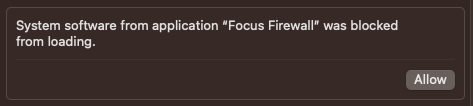
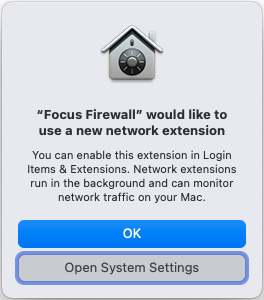
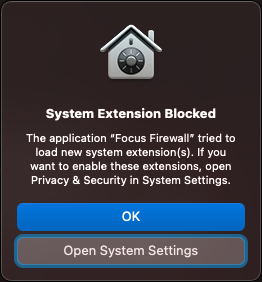
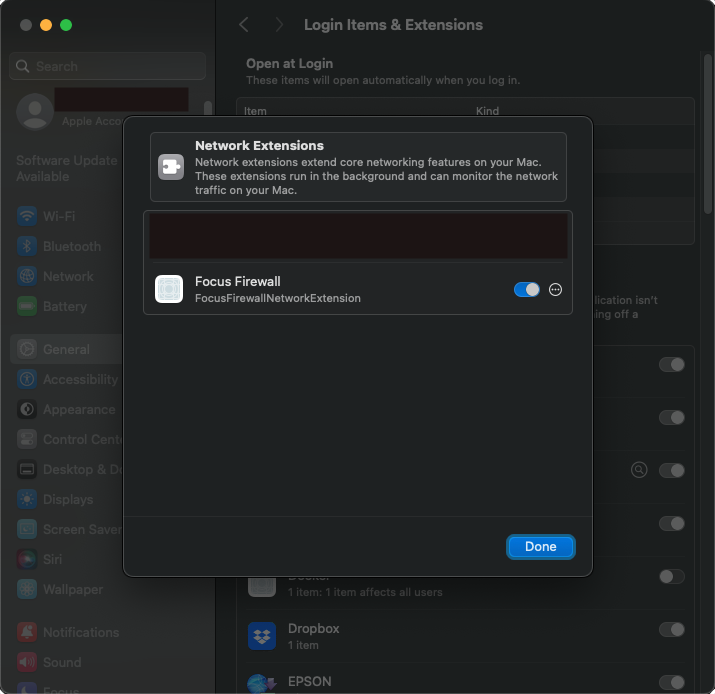
I can't find how to "allow" the network extension

During onboarding, you are asked to grant permissions to our network extension. Where the "allow" lives depends on your macOS version.

Which macOS version are you on? Not sure?

How do I grant the permissions Focus Firewall needs?

Focus Firewall uses a network extension in order to filter distracting websites, and you need to grant permissions on your Mac for it to work properly.

This is typically done during onboarding, when you activate Focus Firewall for the first time. If you skipped onboarding by accident, check out How do I redo the onboarding?

Once you activate Focus Firewall during onboarding, your Mac should show a permission popup.

Which macOS version are you on? Not sure?

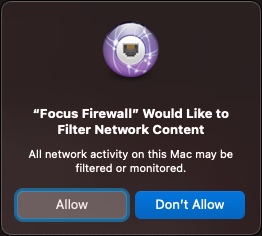
Once that's done, your Mac presents you with one more popup, asking to grant the network extension permission to filter network content. Focus Firewall needs this permission in order to identify which websites are being accessed and block them in case they are distractions. Click Allow to continue.

Allow filtering network content
Click on allow

How do I redo the onboarding?

Go to Settings > Advanced > Reset and select Reset onboarding, then open Focus Firewall from the menu bar and do the onboarding from scratch again.

In the Network Setup step, make sure to follow the instructions and grant permissions when asked by the system.

Nothing worked. How do I reinstall the network extension from scratch?

In rare scenarios, the network extension installation gets to a stuck state and stops working. If you tried everything else, this is the last resort and should be able to fix any issues.

  1. Open Focus Firewall settings from the menu bar
  2. Click on the Advanced tab and open the diagnostic tool
  3. In the tool, scroll down and click on Manage > Force extension deactivation, which forces the extension to be uninstalled
  4. Restart your computer
  5. Open the diagnostic tool again, and now click on Manage > Force extension activation to install the network extension from scratch. You may be asked for permissions again, which you need to grant both in Privacy & Security and on the pop-up

A website I didn't block isn't working

Some websites depend on other domains behind the scenes, and if one of those domains is blocked, the website may not load or get stuck, even though the website itself isn't blocked.

A common example is signing in to Google products (Gmail, Google Cloud, Google Drive, etc): Google redirects your browser through accounts.youtube.com to also sign you in to YouTube (more details), so if YouTube is blocked, the sign-in gets stuck on that redirect.

The fix is to briefly pause blocking (for example, Pause for 1 minute) or temporarily toggle the blocked category or website off from the menu bar, finish what you were doing (e.g. the Google sign-in), and turn blocking back on. Sign-ins persist afterwards, so this is rarely needed.

If you found another website affected by this, please let us know at support@focusfirewall.com.

Why can't I sign in to Google (Gmail, Google Cloud, etc) while YouTube is blocked?

When you sign in to any Google product, Google redirects your browser through accounts.youtube.com to also sign you in to YouTube (more details). If YouTube is blocked, the sign-in gets stuck on that redirect.

To sign in, briefly pause blocking or temporarily toggle YouTube off from the menu bar, complete the sign-in, and turn blocking back on. You stay signed in afterwards, so this is only needed during sign-in.

Categories are missing from my menu bar (version 1.2.0)

New users on Focus Firewall v1.2.0, in rare conditions, might see an incomplete menu bar without blocking categories (e.g. Social Media, News, etc). If this is happening to you, upgrade to v1.2.1+, where we fixed this. If by some divine reason you must stay on 1.2.0, fix the issue by resetting app settings on Settings > Advanced > Reset > Reset app settings.

Compatibility

Which macOS versions does Focus Firewall support?

Focus Firewall supports the latest macOS — Tahoe (26) — and we recommend always upgrading to the latest version.

Older versions are also supported, all the way back to macOS Sonoma (14). If you're staying on an older macOS, we highly recommend at least macOS Sequoia 15.3 (24D60).

Find out which macOS your Mac is using

Does Focus Firewall work with VPNs?

Yes, Focus Firewall typically works well alongside VPNs.

However, there are some VPNs that may not work well with Focus Firewall at this time. If you are experiencing issues, please let us know and we will investigate.

Tailscale VPN: we are aware of a macOS bug where Reddit is still accessible while blocking is active when the user is using Tailscale VPN and Focus Firewall at the same time. Blocking works fine on all other websites. We have reported the issue to Apple and are waiting for a response.

Does Focus Firewall slow down my Mac?

Focus Firewall is designed to be as lightweight as possible.

It uses very little CPU and memory, and it should not slow down your Mac.

For reference, the app package is only 16MB. While running, the app uses less than 100MB of RAM and most of the time your Mac's CPU usage will be 0%. Apple's instruments indicate the app has near zero energy impact and consumes almost no battery.

Pricing

Is there a free trial?

We offer a 7-day free trial so you can try it out and see if it fits your needs.

Should I subscribe or purchase Lifetime?

With a subscription, you can cancel anytime if you no longer need it.

You can also subscribe for short periods of time, like during exams or when you need to focus on a project, and cancel when you no longer need it.

We also made the subscription very affordable, that way you can use it without a big upfront cost.

Lifetime option offers the best value, as you pay once and get all future updates for free.

Can I use Focus Firewall on more than one Mac?

Yes. Focus Firewall is distributed through the Mac App Store, so you can install it on all Macs signed in to your App Store account.

How do I cancel my subscription?

Subscriptions are managed by Apple. Open the App Store on your Mac, click your name in the sidebar, go to Account Settings and cancel the Focus Firewall subscription under Subscriptions.

You keep access until the end of the period you already paid for.

Privacy

How does Focus Firewall handle my privacy?

Our business is about selling great software, not selling your data.

We do not collect any personal information about you, your browsing habits, or the websites you visit.

We do not track you, we do not profile you and we do not share nor sell your data to third parties.

When the app blocks a distracting website for you, all of your browsing data is processed locally on your device, and we do not have access to it.

We kindly ask you to send us anonymous usage analytics to help us improve the app, and that is completely optional. You can say no during the installation process, or disable it later in the app settings at any time. This data is only used to improve the app. For example, we'd like to understand if folks are using the new feature we just shipped, how many hours in average do people save every day with our app, how many hours in total did all of our users save, etc. This data is completely anonymous and we have no idea who you are.

For more information, please read our Privacy Policy.

About us

Who makes Focus Firewall?

Focus Firewall is made by Terran, a small self-funded software company based in Brazil.

Couldn't find what you were looking for?

Email us and we will be happy to help.

support@focusfirewall.com

©2024 Focus Firewall • Developed by Terran
App Store, Mac and macOS are trademarks of Apple Inc., registered in the U.S. and other countries.